
Installing the Light QA Extension
Learn how to install and set up the Light QA Assistant browser extension to record test flows and export them as Playwright scripts.
What is Light QA Extension?
Light QA Assistant is a powerful browser extension that lets you record your interactions with any website and automatically generate production-ready Playwright scripts. It captures clicks, inputs, navigation, and even API calls during your recording session.
Key Features
- Record test flows naturally by interacting with your website
- Auto-generate stable CSS/XPath selectors
- Export to Playwright Python or JavaScript
- Capture API calls and network requests
- Optional video recording of sessions
- Basic accessibility and GDPR compliance checks
Installation Steps for Chrome/Edge/Brave
- Open Chrome Web Store: Visit the Light QA Assistant extension page
- Click "Add to Chrome": You'll see an "Add to Chrome" button on the extension page
- Confirm Installation: A popup will appear asking for confirmation. Click "Add Extension"
- Verify Installation: Look for the Light QA icon in your browser toolbar (usually in the top-right corner)
- Pin the Extension (Optional): Right-click the extension icon and select "Pin" to keep it visible
First-Time Setup
After installation, here's how to get started:
- Click the Extension Icon: Click the Light QA icon in your browser toolbar
- Sign In (Optional): If you have a Maeris account, sign in to sync recordings. Otherwise, you can use it without signing in
- Grant Permissions: The extension may request permissions to access website data. Click "Allow" to enable full functionality
- You're Ready! Start recording your first test flow
Recording Your First Test Flow
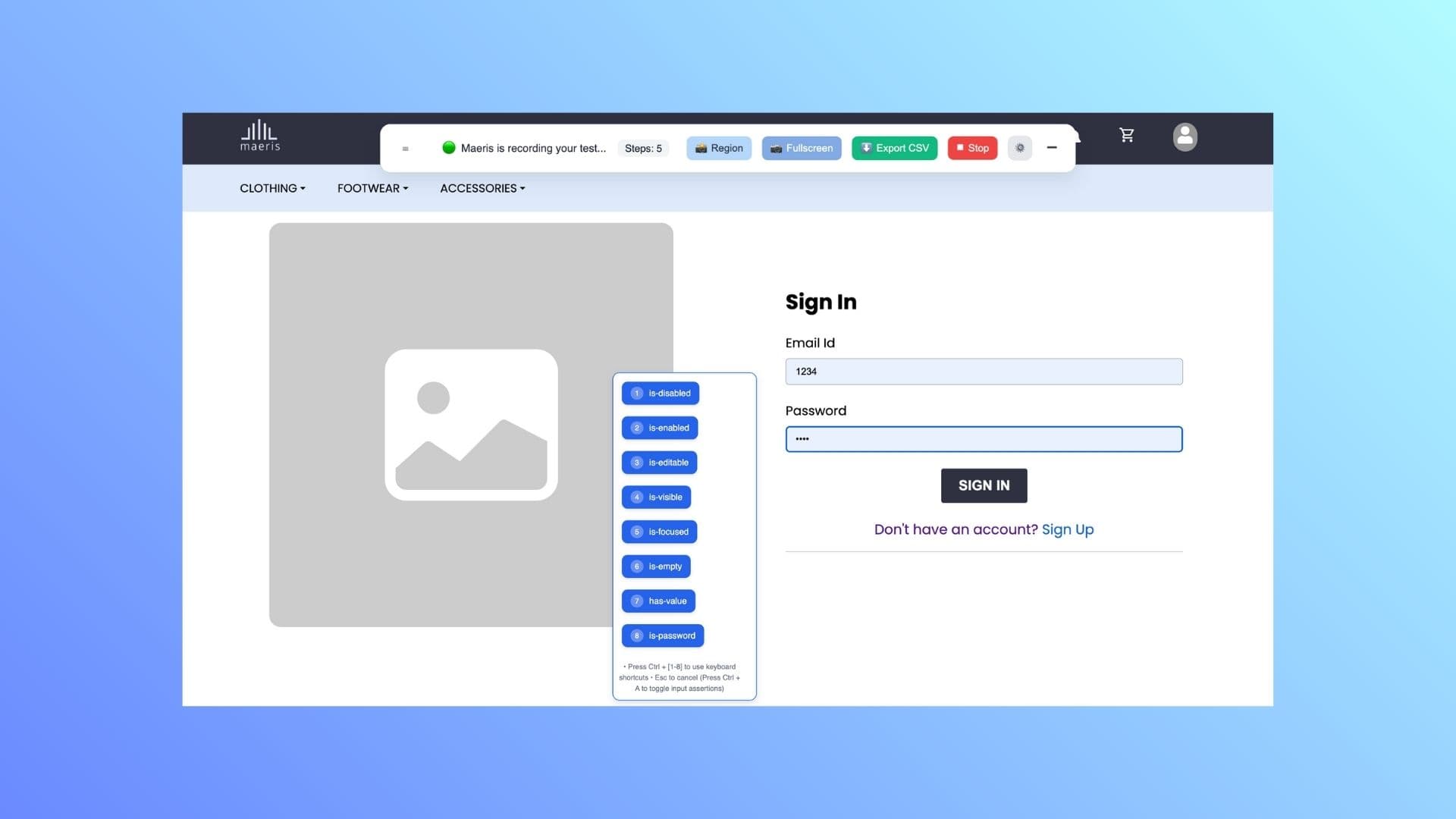
Recording a test flow is simple:
- Navigate to Your Website: Go to the website you want to test
- Click the Extension Icon: Open the Light QA Assistant panel
- Click "Start Recording": The extension will begin capturing your interactions
- Interact with the Website: Click, type, navigate - do everything you want to test
- Stop Recording: Click "Stop Recording" when you're done
- Review and Export: Review the captured steps and export to Playwright
Exporting to Playwright
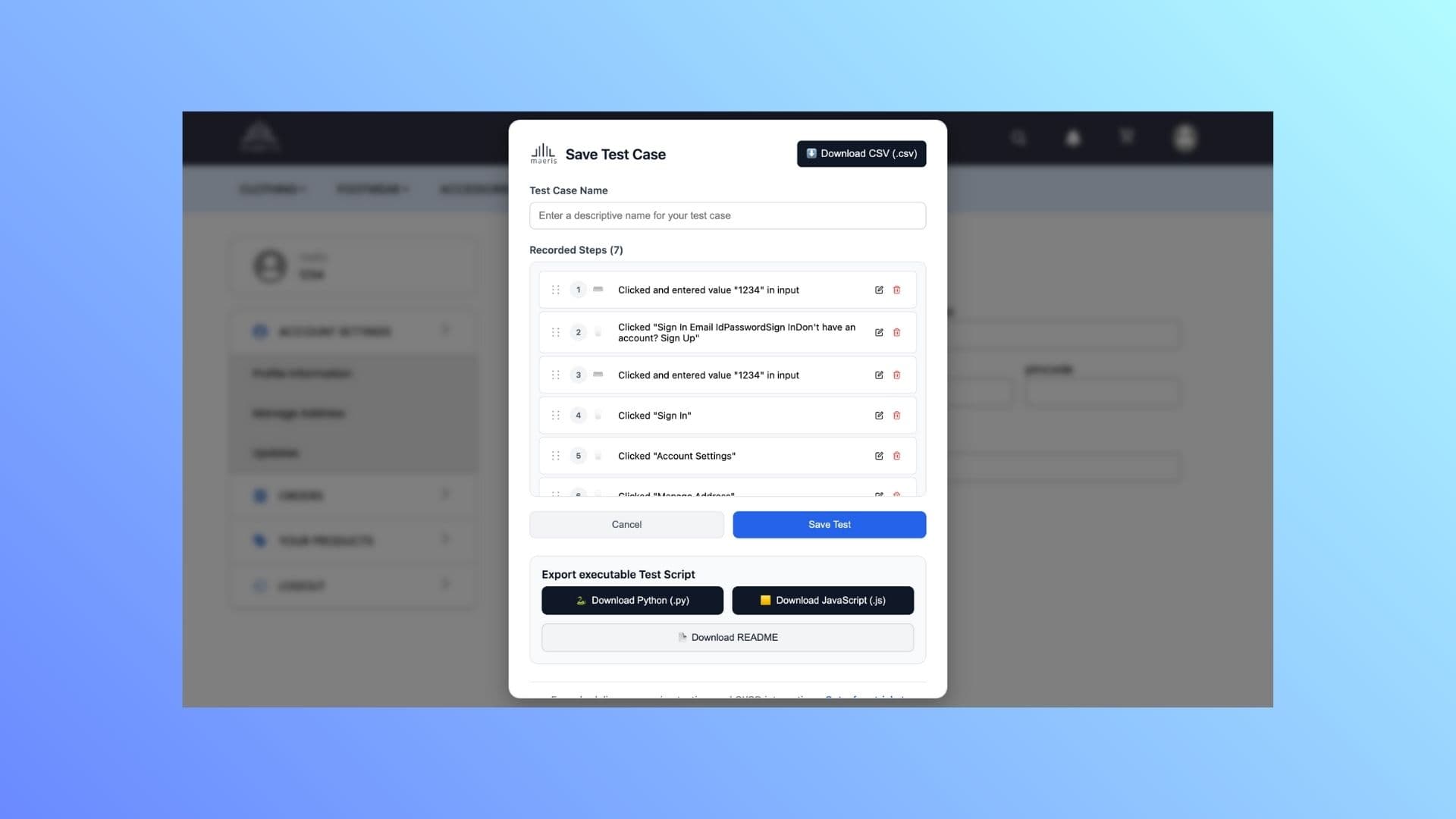
Once you've recorded a flow, you can export it as a Playwright script:
- Review Your Recording: Check all captured steps in the extension panel
- Click "Export": Find the export button in the extension interface
- Choose Format: Select either:
- Playwright Python
- Playwright JavaScript
- API Collection (JSON)
- Download: The script will be downloaded to your computer
- Use in Your Project: Copy the code into your Playwright test file and run it
Extension Features
API and Network Tracking
Light automatically captures all network requests and API calls made during your recording:
- Request URLs and methods (GET, POST, PUT, DELETE, etc.)
- Request and response headers
- Query parameters and payloads
- Response status codes and bodies
This makes it easy to create comprehensive API test collections alongside your UI tests.
Video Recording
Optionally record your entire session as a video:
- Perfect for debugging and sharing with your team
- See exactly what happened during the recording
- Helpful for documentation and training
Accessibility & GDPR Checks
Get basic compliance insights while you record:
- WCAG accessibility issues
- Cookie usage patterns
- Storage and security patterns
- GDPR compliance indicators
Troubleshooting
Extension Not Appearing
- Check if the extension is enabled in your browser's extension management page
- Try refreshing the page or restarting your browser
- Ensure you're using a supported browser (Chrome, Edge, or Brave)
Recording Not Working
- Make sure you've clicked "Start Recording" before interacting with the page
- Check if the extension has the necessary permissions
- Try reloading the page and starting a new recording
Export Not Available
- Ensure you've stopped the recording before trying to export
- Make sure at least one interaction was captured
- Check your browser's download settings if the file doesn't download
Best Practices
- Record Complete Flows: Record entire user journeys from start to finish for comprehensive test coverage
- Use Stable Selectors: Light generates stable selectors automatically, but review them before exporting
- Organize Your Recordings: Give your recordings descriptive names to easily identify them later
- Test the Exported Code: Always test the exported Playwright script to ensure it works correctly
- Combine with Maeris Terminal: Use Light for recording and Terminal for quick test iterations
Next Steps
Now that you have Light QA Extension installed: