
Writing Tests in Plain English
Learn how to create powerful test automation using Maeris Terminal - write tests naturally in plain English, no coding required.
What is Terminal?
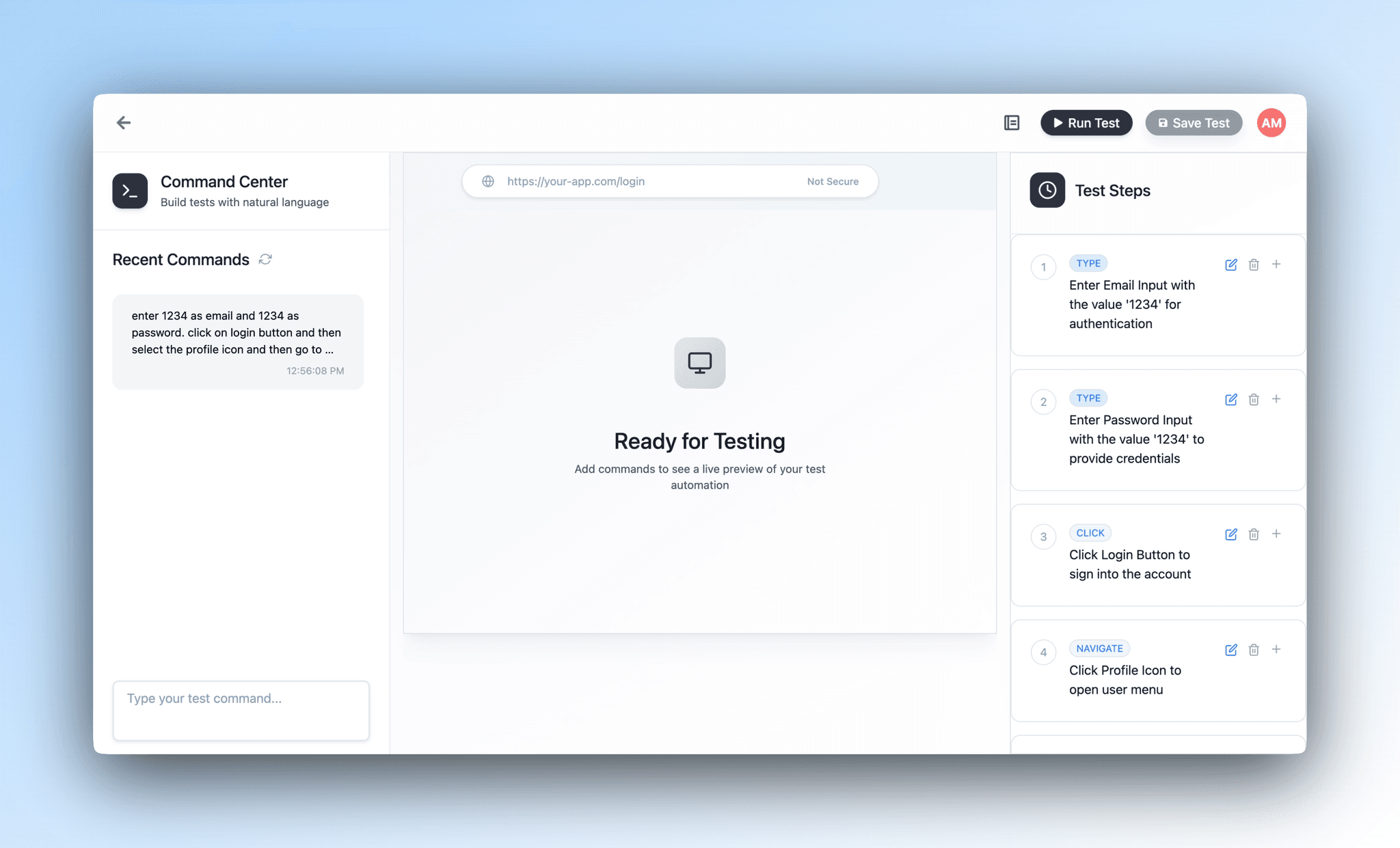
Terminal is Maeris's natural language testing interface. Instead of writing code, you describe what you want to test in plain English, and Maeris automatically converts your instructions into executable tests.
Key Benefits
- No programming knowledge required
- Write tests as if explaining to a colleague
- Faster test creation and maintenance
- Accessible to developers, QA engineers, and product managers
- Automatic test execution with real-time feedback
Basic Syntax and Commands
Terminal understands natural language, but here are some common patterns that work well:
Navigation Commands
Go to [URL]- Navigate to a webpageNavigate to [URL]- Alternative navigation commandOpen [URL]- Open a new page
Example: "Go to https://example.com"
Interaction Commands
Click on [element]- Click a button, link, or elementEnter [text] into [field]- Fill in an input fieldType [text] in [field]- Alternative input commandSelect [option] from [dropdown]- Choose from a dropdownCheck [checkbox]- Select a checkboxHover over [element]- Hover on an element
Example: "Click on the login button, enter username test@example.com into the email field, and enter password123 into the password field"
Verification Commands
Verify [element] is visible- Check if element existsCheck that [text] appears- Verify text is presentAssert [condition]- Make an assertionConfirm [element] contains [text]- Verify text in elementWait for [element] to appear- Wait for element
Example: "Verify the welcome message is visible and check that 'Welcome, John!' appears on the page"
Complete Example
Here's a complete test example written in plain English:
Go to https://example.com/login
Click on the email input field
Enter user@example.com
Click on the password input field
Enter MySecurePassword123
Click on the login button
Wait for the dashboard page to load
Verify the welcome message is visible
Check that "Welcome back!" appears on the page
Saving and Organizing Tests
Once you've written a test, you can save it for later use:
- Write your test in the Terminal
- Click the "Save" button or press Cmd/Ctrl + S
- Give your test a descriptive name (e.g., "User Login Flow")
- Optionally add tags or organize into folders
- Your test is now saved in your Test Notebook

Viewing Test Execution Results
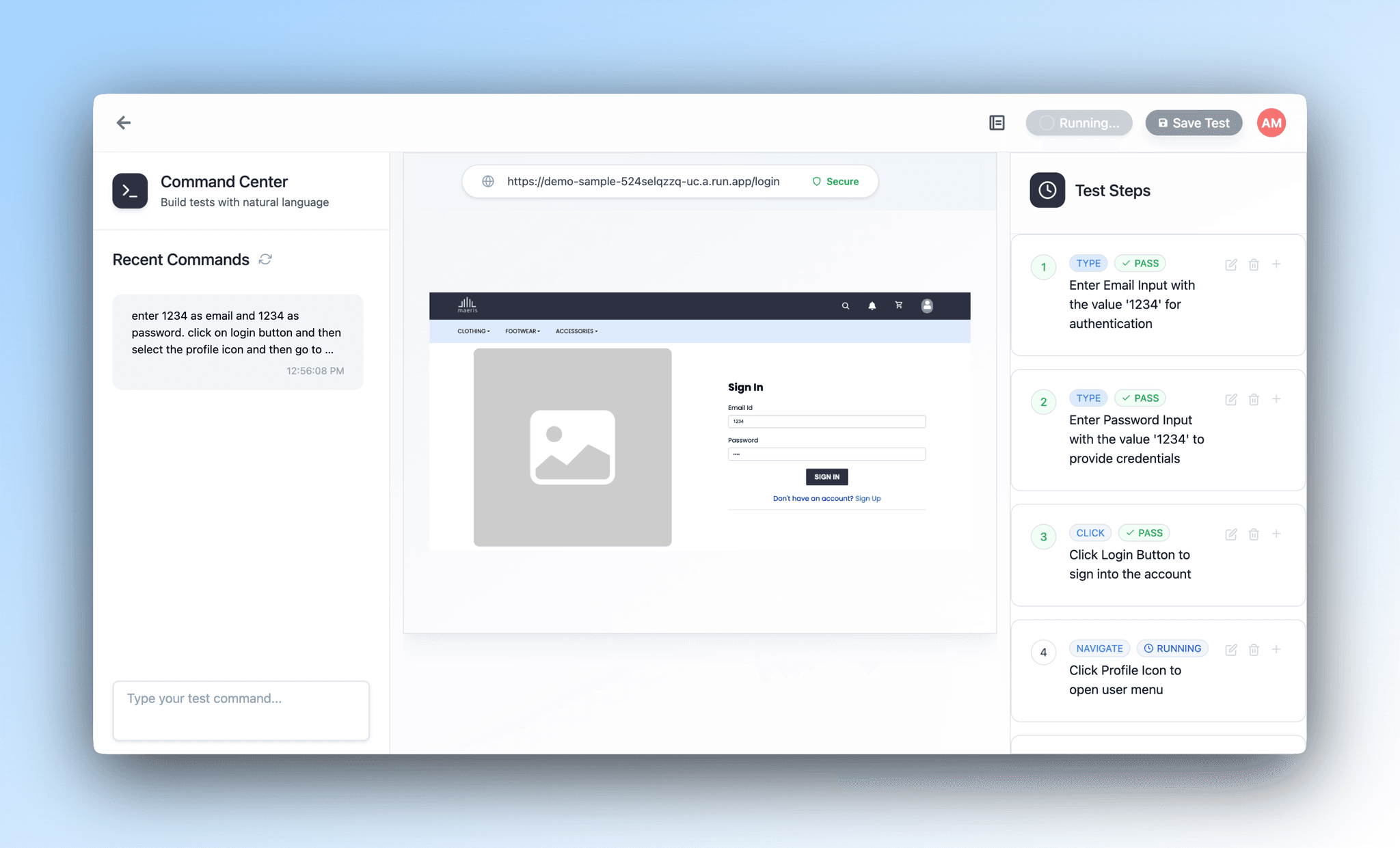
Terminal provides real-time feedback as your tests execute:
- Live Execution: See each step execute in real-time
- Step-by-Step Results: View pass/fail status for each command
- Screenshots: Automatic screenshots at key steps
- Error Messages: Clear error messages if something fails
- Execution Logs: Detailed logs for debugging
Using Components in Terminal
Maeris includes intelligent component management. You can reference components in your tests:
- Terminal automatically recognizes common UI components
- Use component names in your natural language commands
- Components make tests more maintainable and readable
Example: "Click on the LoginButton component" instead of "Click on the button with id login-btn"
Tips and Best Practices
- Be Descriptive: Use clear, specific descriptions. "Click on the blue submit button" is better than "click button"
- One Action Per Line: Break complex flows into individual steps for better clarity and debugging
- Use Wait Commands: If elements take time to load, explicitly wait for them before interacting
- Name Your Tests Clearly: Use descriptive names that explain what the test validates
- Test One Thing: Keep tests focused on a single user flow or feature
- Include Verifications: Always verify expected outcomes to ensure tests are meaningful
Common Issues and Solutions
Element Not Found
If Terminal can't find an element, try:
- Being more specific about the element location
- Adding a wait command before interacting
- Using unique identifiers like IDs or specific text
- Checking if the element is in an iframe or requires scrolling
Test Timing Out
If tests timeout:
- Add explicit wait commands for slow-loading elements
- Check your internet connection
- Verify the target website is responding
- Reduce the number of steps in a single test